Posts

PowerSchedule - A New Scheduling and Calendar Control for PowerBuilder Applications

Image
In the ever-evolving landscape of application development, staying ahead requires the integration of powerful and flexible tools. PowerBuilder developers will now have an exciting addition to their toolkit – PowerSchedule. This scheduling control is designed to empower developers with extensive customization, seamlessly integrating scheduling capabilities into their PowerBuilder applications. Introducing PowerSchedule Due to release in early January 2024, PowerSchedule is not just another scheduling tool; it's a robust solution developed in PowerBuilder to address the unique needs of PowerBuilder developers. This new scheduling control allows developers to take full control of their application's scheduling functionalities while maintaining the efficiency and user-friendliness that PowerBuilder is known for. Key Features: Highly Customizable Interface: PowerSchedule boasts a user-friendly interface that is not only intuitive but also highly customizable. Developers can tailor ...

New Controls for Ultimate Suite for PowerBuilder 2023

Image
2023 is shaping up to be an exciting year for Ultimate Suite for PowerBuilder. With our up-coming 2023 R1 release, we'll have a total of 5 new controls added to the suite.  With the next release, Ultimate Suite for PowerBuilder will have a total of 40 controls, 4 datawindow controls, 5 windows, and 44 themes! Let's introduce the new controls: Pagination The Pagination control displays a row of pages that a user can select. The control automatically renders based on the currently selected page and the total number of pages specified. The control offers several ways to customize its look. The developer can set the maximum number of pages to display, show or hide the paging gap (the ...), show or hide the first and last pages (page 30 is visible in these screenshots), and finally, the font, font size, and horizontal alignment. PowerSearch PowerSearch comes in three varieties; a non-visual component, a search box, and a search drop down. Each control uses the same underlying search...

PowerBuilder Trackbar; reinvented (also introducing a new Rangebar control)

Image
Out of the box, PowerBuilder comes with a very usable horizontal and vertical trackbar. It works as advertised; your users can move the slider to select a value that falls within a predefined Min and Max value range. Very simple. When developing the Image Editor control for Ultimate Suite; a major limitation was discovered with the PowerBuilder Trackbar. I needed a way for users to select the brightness or contrast for an image. It seemed logical to use a trackbar for this. For example, we have a min and max brightness and we need the user to select a value in that range. After placing the trackbar on the image editor control the first thing that I had to do was change the controls background color so that it matches the color scheme I was using. But... to my surprise, there is no background color property for the trackbar. This seemed odd seeing that most controls in PowerBuilder have a background color option. Some research was done to see if there was an API I could hit to change th...

NotepadPB - PowerBuilder Built Notepad

Image
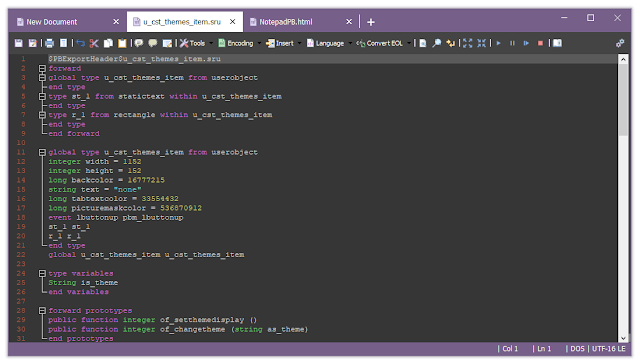
The latest release of Ultimate Suite introduces many new color themes that you can use to make your PowerBuilder applications look absolutely amazing. NotepadPB is a text editor built using PowerBuilder. The latest release takes advantage of the new Ultimate Suite color themes allowing you to customize your text editor using your favorite colors. If you're unfamiliar with NotepadPB; it's a simple text editor application with tons of features. What makes it special is that, unlike other text editors, you will find PowerBuilder specific features. If you open a PowerBuilder source file you get proper syntax highlighting, code folding, a code beautifier, go to definition when you right click on a function declaration, and so much more. In addition to the PowerBuilder related features, you get other things like: Tabbed navigation. Advanced find and replace indicators Language support for many popular programming languages. Tools to manipulate your text. Easily insert new GUIDs, calc...

Image Editor for PowerBuilder

Image
The latest release of Ultimate Suite for PowerBuilder includes a handy new Image Editor control. Give your users the ability to view and manipulate images directly in your PowerBuilder application. The control supports two ways to load images. You can pick a file from the file system, or you can paste an image that's in your clipboard. Save and Save As lets you save changes to an existing file or to a new file. The Image Editor also supports unlimited Undo and Redo actions. Many options have been added for image manipulation. This control allows your user to do the following: Rotate the image left or right. Flip the image horizontally or vertically. Crop Apply effects: Set brightness and contrast. Grey scale. Black and white. Invert colors. Apply a Sepia tone. Last but not least; you can zoom and pan your image. Implementing is extremely simple; Add the u_cst_imageeditor component to any of your window or userobject objects. Toolbar images are provided but you can easily swap them ...

32 New Color Themes!

Image
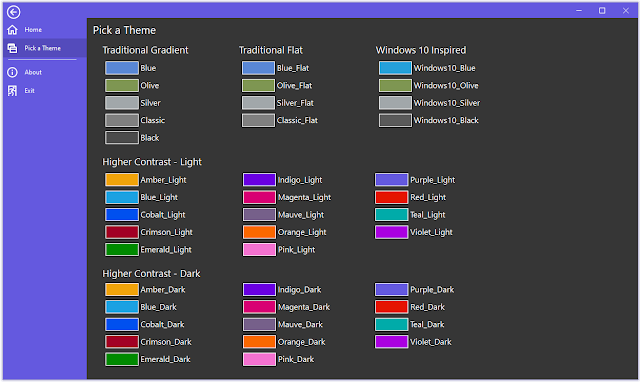
The 2021 R1 release of Ultimate Suite for PowerBuilder will contain 32 new color themes. 4 of the theme's are based on the traditional Blue, Olive, Silver, and Classic themes. They have been flattened to give a more modern appearance (remember when gradience was all the rage).  The remaining 28 themes are higher contrast. These 28 themes are made up of 14 base accent colors. Some of the colors are bold, some are more neutral. Each color has 2 variants, light and dark. Colors are becoming more important in applications. They help you create beautify, distinct interfaces. In addition to colors, dark themes are also becoming ever more popular. With the addition of new theme colors to Ultimate Suite, your options to create the most modern looking application has never been easier. For more information about Ultimate Suite for PowerBuilder, visit https://www.pbultimatesuite.com .

Product Tours w\ Ultimate Suite for PowerBuilder

Image
If you use web or mobile apps enough, you've most likely experienced a product tour at some point. Product Tours guide you through an application, pointing out important features and to a certain degree, how to use them. The 2021 R1 release of Ultimate Suite for PowerBuilder will have a new Product\Feature Tour control that will allow you to setup a tour of your application (the visible parts) or call out a single new feature. In addition to pointing out new or existing features, you could also use it to point out important validation issues. You can use a variety of predefined colors for each callout allowing you to customize the look for the action. Multi-Step Product Tour Single Feature Callout Stay tuned for the up coming 2021 R1 release. For more information about Ultimate Suite for PowerBuilder, visit www.pbultimatesuite.com .

Ultimate Suite 2021 for PowerBuilder - Released

Image
After many long months of development, the 2021 release of Ultimate Suite for PowerBuilder is now available. This is one of the largest releases of Ultimate Suite in recent history. Many new controls have been added, new Datawindow controls have been introduced, and existing controls have been enhanced. For a summary of the new controls and some of the enhancements in this release, refer to the following post: https://powertothebuilder.blogspot.com/2020/09/new-controls-coming-in-next-release.html For a summary of the new Datawindow controls, refer to the following post: https://powertothebuilder.blogspot.com/2020/11/new-controls-for-your-powerbuilder.html In addition to updated controls, this release contains significant enhancements to the UI Designer: Nearly all the controls have been added to the UI Designer. Finally added Open, Save, and Save As functions so you can save settings and change them later. Incorporated new flyout program tab menu. Changed a lot of the generated code to...

New Controls for your PowerBuilder Datawindow

Image
It seems that over the years, I usually declare the next release of Ultimate Suite for PowerBuilder as the most exciting. For me, this is usually true; it's exciting to be able to provide PowerBuilder developers not only with new UI Controls to help update the look of their applications, but to provide controls that help extend functionality (allowing you to add new features to your applications). The Ultimate Suite 2021 release has a new set of controls for your windows and user objects. In addition to this, some of these new controls have been brought into the datawindow. Most of our PowerBuilder applications are heavily data driven and rely on the datawindow to display and persist data. Having new UI controls available right in the datawindow will make it easier for you to use them in your applications; Easier to display, print, or export to PDF. Here is a rundown of the new datawindow UI controls: Circle Progress This control is used to visually display a percentage or progress...

Media Player Built Entirely with PowerBuilder and Ultimate Suite for PowerBuilder

Image
The next release of Ultimate Suite is going to include a new Circle Progress control. The best way to make sure that a new control covers all the needs of the developer is to use it in a real world application. Doing this allows you to identify deficiencies in the design or behavior. The best way I could think of to do this was to use the Circle Progress control within a media player. It can be used to start or pause playback and display the video's elapsed time. Using the Ultimate Suite caption-less window, some toolbars, the circle progress control and the Windows Media Player Active-X control, we get the following: To create this, first inherit a new window from w_pbus_spa_captionless. Add a logo, static text for the application label, two toolbars for the play back options, and the circle progress control. Next, add an OLE control and select Windows Media Player. In the open event of the window, add the following code: //Use a custom color for the window background color THIS ....

New Controls Coming in the Next Release of Ultimate Suite for PowerBuilder!

Image
 A lot of work is going into the next release of Ultimate Suite for PowerBuilder. Here are some of the highlights: Progress Indicator on the PB Command Button You will be able to display a visual indicating progress right within the PB command button. Look for the new of_SetProgress function. Circle Progress Control The Circle Progress control allows you to visual display a percentage of completion. Customizable features include theme, circle thickness, font, and font size. Instead of displaying a percentage, you can display an image in the center of the circle. Stepbar Control The Stepbar control is perfect for displaying overall progress through a series of more complex steps. Any number of steps are allowed and will size to fix the width or height of the control. Both horizontal and vertical orientations are supported.  Card Control Cards are a nice way to combine imagery with text.  Image Compare Control If your users need to compare two images, this control can help ...

PowerBuilder Code Beautifier / Formatter

Image
 A new code beautifier for PowerBuilder (PowerScript) code has been added to NotepadPB: https://powertothebuilder.com/NotepadPB.html This is the first and initial version which uses a very simple approach to formatting the code. NotepadPB will use multiple passes to adjust spacing, casing, and indenting of the script. The process works as follows: Start by tokenizing the script by splitting everything into words or characters (characters for things like quotes). We then loop through each token and determine if it's a keyword, datatype, quote, comment, carriage return, or user defined text (like variable names). We change the case on keywords and datatypes, and track indent level if the keyword is an indent-able keyword (e.g. IF, FOR, CHOOSE, etc). Comments and quoted text are ignored, we don't want to modify them. At the end, we reassemble our script. In our second pass, we parse our script by line. We will apply some formatting on a line by line bases. The second pass is meant...

Develop a web browser in PowerBuilder.

Image
The inclusion of the new Chromium Web Browser control in PowerBuilder 2019R2 gave us the possibility to develop our own web browser in PowerBuilder. We could have done this already with the MS Web Browser control but we would have had to accept the limitation of IE. With the new PowerBuilder control, we know that we'll have maximum compatibility with the most up to date web sites. Microsoft even accepts this after converting Edge to use Chromium.  So the big question, why? The short answer to that is... to learn something new. I've been developing software for 20 years. In those years I've developed countless of useless applications just for the sake of learning (I once developed a fully functional version of Mine Sweeper in Silverlight). Below is what we'll create. We'll use the PB Chromium Web Browser control with the Ultimate Suite for PowerBuilder Tabbed Caption window. Some things we'll accept right away; 1) This browser is extremely basic so we won't ...